
PineVoice (Single Page)
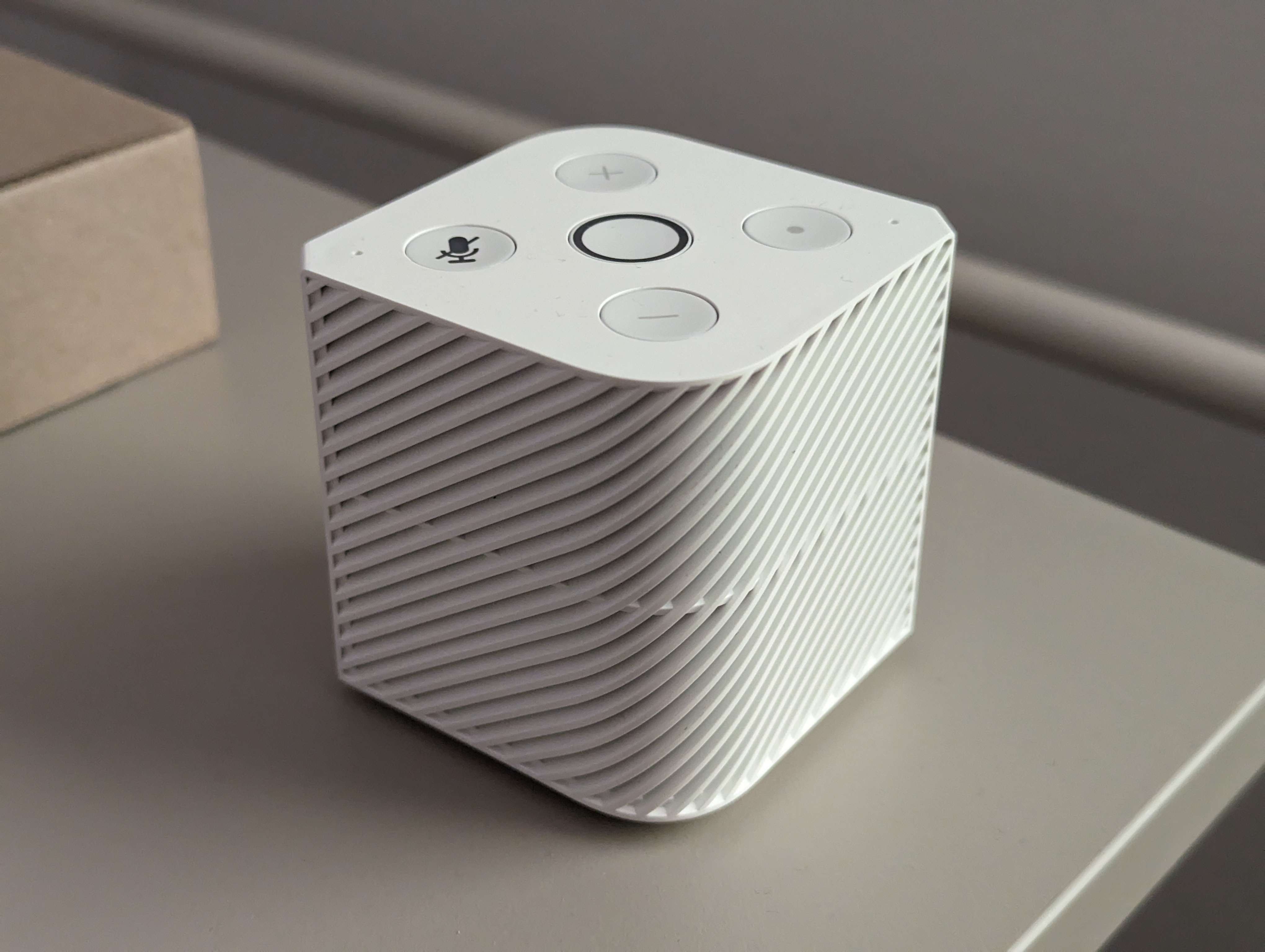
The PineVoice
The PineVoice is a RISC-V based smart speaker based on the Bouffalo Lab BL606P RISC-V SoC with C906 64-bit and E907 32-bit CPU cores supported by 32 MiB of embedded pSRAM memory, 16 MiB of Flash, and with built-in Wi-Fi and Bluetooth radio interfaces. Some of notable features include dual microphone array and full local wake word detection. Factory shipped firmware is open-source and provides Wyoming Satellite, compatible with assistence platforms such as Home Assistant.
Specifications
The PineVoice is a compact smart speaker based on the Bouffalo Lab BL606P RISC-V SoC. It is designed as a local voice assistant satellite, with Wi-Fi, Bluetooth, a speaker, a dual microphone array, buttons, and a center ring LED.
SoC and memory
PineVoice is based on the Bouffalo Lab BL606P.
CPU architecture
T-Head C906 480 MHz 64-bit RISC-V CPU:
- Supports RISC-V RV64IMAFCV instruction architecture
- Five-stage single-issue sequentially executed pipeline
- Level-1 instruction and data cache of Harvard architecture, with a size of 32 KiB and a cache line of 64 bytes
- Sv39 memory management unit
- Supports AXI 4.0 128-bit master interface
- Supports core local interrupt (CLINT) and platform-level interrupt controller (PLIC)
- Compatible with RISC-V PMP
T-Head E907 320 MHz 32-bit RISC-V CPU:
- Supports RISC-V RV32IMAFCP instruction set
- Supports RISC-V 32-bit and 16-bit mixed instruction set
- Supports RISC-V machine mode and user mode
- Integer and floating-point pipelines
- Supports AXI 4.0 main device interface and AHB 5.0 peripheral interface
- 32 KiB instruction cache
- 16 KiB data cache
T-Head E902 150 MHz 32-bit RISC-V CPU
Memory and storage
- 32 MiB pSRAM
- 788 KiB SRAM
- 16 MiB flash storage
Hardware features
Wireless
- Wi-Fi 802.11 b/g/n
- Bluetooth 5.2 Dual-mode (BT+BLE)
Audio
- Built-in speaker (tuned for voice applications)
- Dual microphone array
Controls and indicators
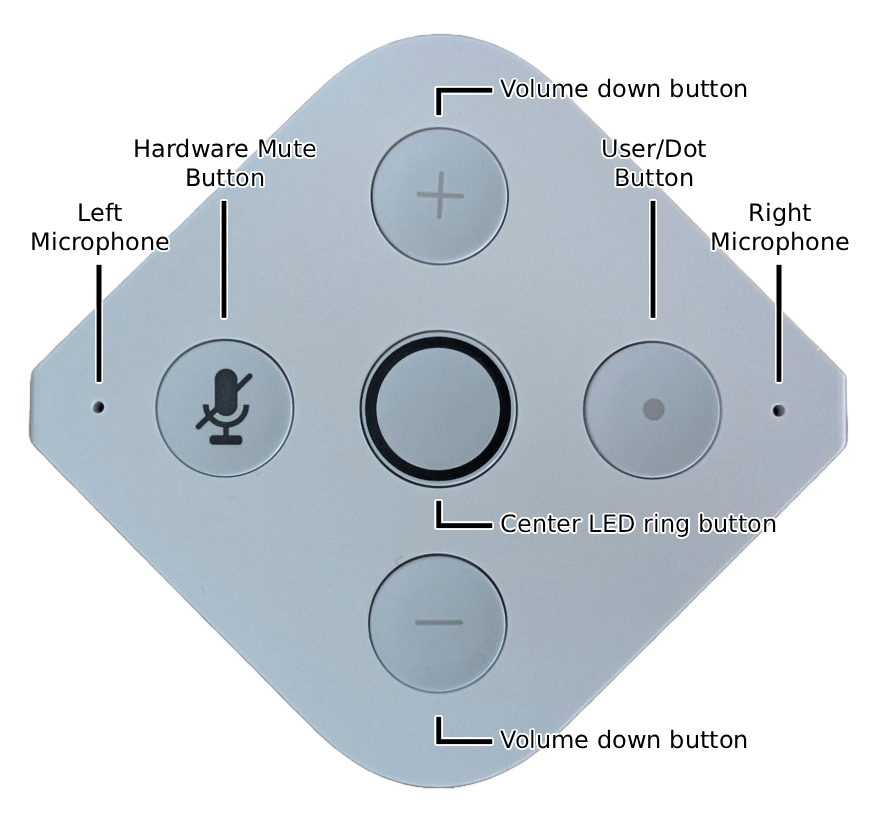
PineVoice buttons view
- Button controls
- Center LED ring and button
- Hardware mute button
See Software for the current factory firmware button behavior and LED status colors.
Power and connectivity
- USB-C power input and data channel
- Debug UART is exposed on unused USB-C pins
Package contents
- USB-A to USB-C power cable
Board information, schematics and certifications
Module dimensions:
- 65 mm x 65 mm x 66 mm
Production version schematics:
- PineVoice MainBoard Schematic with component placement 20260311
- PineVoice Bottom Board Schematic 20250921
Certifications:
Datasheets
Bouffalo BL606P SoC information:
- Bouffalo Lab BL606P SoC Datasheet
- Bouffalo Lab BL606P SoC Reference Manual (BL808 RM applies to BL606P as well)
- Bouffalo Lab BL606P SoC Product Brief
SPI NOR flash information:
Software overview
The factory PineVoice firmware is open-source and turns PineVoice into a voice assistant satellite. It provides Wi-Fi provisioning over Improv and voice assistant connectivity over the Wyoming protocol.
Firmware is using Alibaba’s AliOS, specifically it’s “YoC/YoCop” variation.
Supported features
The current factory firmware supports:
- Wi-Fi provisioning using the Improv protocol over Bluetooth Low Energy
- Wyoming satellite for compatible assistance applications
- Wyoming mDNS auto-discovery for compatible assistance applications
- Local wake word detection using MicroWakeWord
Setup
On first boot, PineVoice starts in Wi-Fi provisioning mode. In this mode, the ring LED blinks yellow. Use WiFi Setup to connect PineVoice to a Wi-Fi network and follow further instructions for connection with Assistance application which supports Wyoming protocol, such as Home Assistant.
LED ring lightshows
The center LED ring is used to show the current state of PineVoice. For most actions and states, light shows are used instead of voice feedback so PineVoice does not unexpectedly disturb the user, for example during the night. Active-state light shows, such as the dim cyan standby light, are intentionally kept dim so they remain visible without being distracting in a dark room.
Startup and setup
| Light show | Meaning |
|---|---|
| Dim white fade-in/fade-out, once | Boot-up lightshow. PineVoice has started. |
| Yellow breath, loop | PineVoice is in provisioning mode and is ready to connect to Wi-Fi through the Improv protocol. |
| Green fade-in/fade-out, once | Identification signal during provisioning, used to identify the paired PineVoice. |
| Dim orange breath, loop | PineVoice is trying to connect to Wi-Fi. |
| Dim magenta breath, loop | PineVoice is waiting for a Wyoming client to connect. |
Assistant states
| Light show | Meaning |
|---|---|
| Dim cyan, still | PineVoice is active and in standby, waiting for the user to press the center button or say the wake word. |
| Blue-cyan-blue breath, loop | PineVoice is listening to the user’s voice input. |
| Dim purple, still | PineVoice is processing the user’s input. |
| Slow green breath, loop | PineVoice is answering. |
Action feedback
| Light show | Meaning |
|---|---|
| White fade-in, once | Volume up. |
| White fade-out, once | Volume down. |
| Red fade-out, once | An error happened or the action failed. |
Button controls
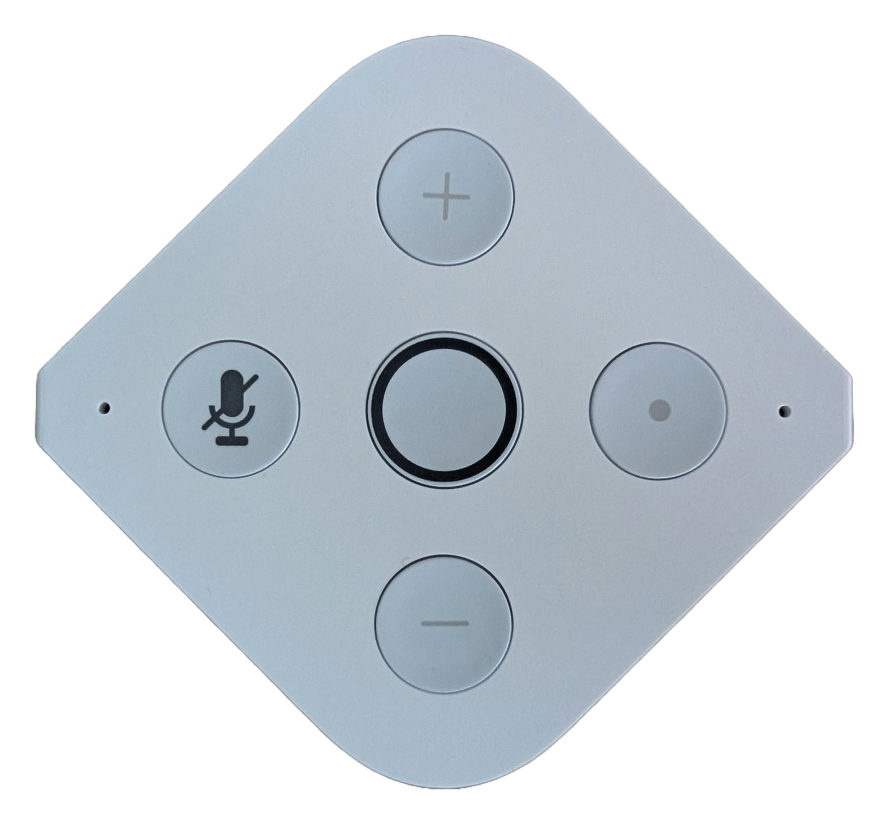
PineVoice buttons view
PineVoice has five top buttons for voice control, volume, microphone mute, and provisioning.
- Center LED ring button - starts a voice command session.
+button - increases the volume.-button - decreases the volume.- Microphone button - hardware microphone mute. The button shines red while microphone mute is active.
- Dot / user button - currently used to enter provisioning mode. Hold it for 15 seconds to reset Wi-Fi setup and return PineVoice to provisioning mode.
Voice feedback
As mentioned in LED ring lightshows, voice feedback is used rarely. PineVoice mostly uses light shows instead, and voice feedback is generally reserved for direct user interaction.
Audio feedback is currently used in the following cases:
- Wi-Fi provisioning started - played when Wi-Fi provisioning starts, including on first boot.
- Wi-Fi provisioning succeeded or failed - played when Wi-Fi provisioning finishes successfully or fails.
- Wyoming satellite is disconnected - played when Assist is attempted, but the Wyoming satellite/client is not connected.
- Wi-Fi is disconnected - played when Assist is attempted, but PineVoice is not connected to Wi-Fi.
Wake word detection
PineVoice uses MicroWakeWord for local wake word detection.
For now, PineVoice uses the “Hey Jarvis” model from the ESPHome MicroWakeWord models project. The wake word generally works well, but recognition may vary depending on the speaker’s voice, pronunciation, distance from the device, and background noise.
Source code
You can find source code of this firmware (PineVoice SmartSpeaker SDK) on Codeberg and Github.
WiFi Setup
PineVoice implements open-source WiFi Provisioning protocol Improv. Any application supporting this protocol is capable of setting up WiFi on the PineVoice.
Entering Provisioning Mode
On first boot, the speaker automatically enters Wi-Fi provisioning mode. While in this mode, the ring LED blinks yellow.
If the ring LED is not blinking yellow, the speaker is not in provisioning mode. Perform a factory reset to return it to provisioning mode, by holding • dot button for 15 seconds. After releasing the button, PineVoice should restart and launch Provisioning Mode.
Provisioning
Once the speaker is in provisioning mode (ring LED blinking yellow), use one of the following methods to send the Wi-Fi credentials:
Through Web
Open this website on your PC or phone, which have Bluetooth 4.0 (Low Energy) connectivity and then press following button:
Alternative web provisioning
If button on this website does not work, try it on Improv website.
Through Home Assistant
Home Assistants supports Improv via BLE. This feature must be set up properly to be functional. Please, follow this instructions on Home Assistant website.
This card should pop up automatically in your Home Assistant on Devices page:
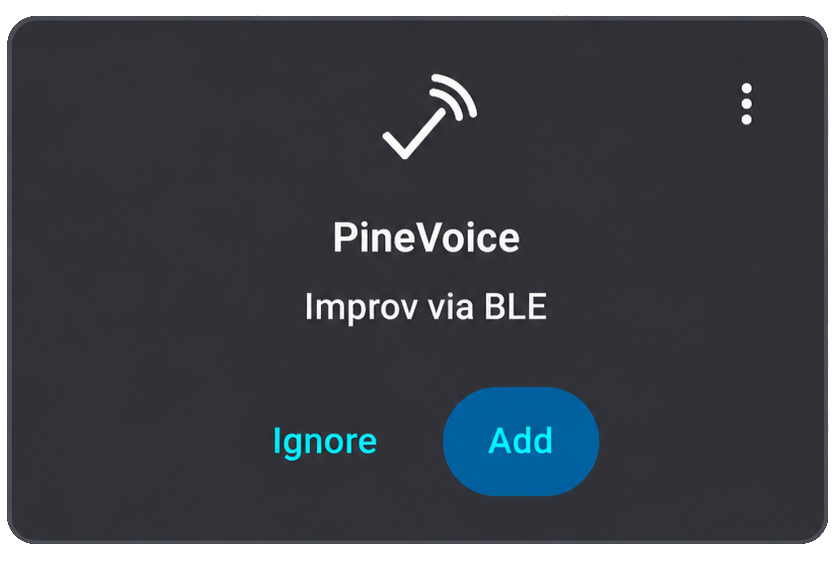
Improv Card in Home Assistant
After successful provisioning, please continue to Assistance Setup.
Assistance Setup
PineVoice implements the open-source Wyoming protocol for voice assistants. Any assistance application supporting this protocol can communicate with PineVoice.
Before starting
Complete WiFi Setup first. After PineVoice has joined the Wi-Fi network, the center ring LED should slowly breathe in a dim magenta color. This means that PineVoice is connected to Wi-Fi and is waiting for an assistance application to connect through the Wyoming protocol.
Adding PineVoice to Home Assistant
Home Assistant supports Wyoming Protocol devices through the Wyoming Protocol integration. Home Assistant must also have a working Assist voice pipeline. Follow the Home Assistant Assist documentation if Assist has not been configured yet.
Automatic setup
PineVoice supports mDNS auto-discovery. If Home Assistant can see mDNS announcements on the same network, PineVoice should appear automatically as a discovered Wyoming Protocol device.
- Open Home Assistant.
- Go to Settings -> Devices & services.
- Look for a discovered Wyoming Protocol device.
- Select Configure.
- Follow the on-screen instructions to finish adding PineVoice.
After setup completes, PineVoice should be available as an Assist satellite in Home Assistant.
Manual setup
If PineVoice does not appear automatically, add it manually through the Wyoming Protocol integration.
- Find the IP address of PineVoice in the client list of your Wi-Fi router or access point.
- Open Home Assistant.
- Go to Settings -> Devices & services.
- Select Add integration.
- Search for and select Wyoming Protocol.
- Enter the PineVoice IP address as the host.
- Enter
10700as the port. - Follow the on-screen instructions to finish adding PineVoice.
Troubleshooting
If following bugs occurs:
- PineVoice is stuck in listening state or Home Assistant does not react to start of Assist - restart PineVoice.
- Device add failed - press Retry / Try Again, or try to add the PineVoice again.
Following bugs are being investigated and will be fixed in update of PineVoice firmware or Home Assistant Core.
If Home Assistant cannot connect to PineVoice, check the following:
- PineVoice and Home Assistant are on the same network or VLAN.
- The center ring LED is breathing in dim magenta.
- The IP address entered in Home Assistant is the current IP address of PineVoice.
- TCP port
10700is reachable from the Home Assistant system. - mDNS is allowed on the network if using automatic discovery.
For more information, see the Home Assistant Wyoming Protocol integration documentation.
Testing
After PineVoice is properly added to an assistance application, assist can be triggered in the following ways:
- Say the wake word: “Hey Jarvis”
- Press the center button in the LED ring
After triggering assist, say a command supported by the assistance application. The assistance application should then reply accordingly.